Button 2 is a theme that’s as cute as its name. With detailed accents, featured images, and a soft color palette, Button 2 is perfect for crafters and designers. So, if you want to show your Craft and Design related work in a website, then this wordpress theme is for you. You can use it for free. You can see the Demo of Button2 theme.

Download Button2 Theme by Automattic Parent Theme
Download Button 2 by Automattic Child Theme
I have shared some css customization process of Button2 theme.You can use the codes i shared to give it a new look of your own. Also you can ask question regarding any issue you are facing in comments section.
To change Dashed border of menus thickness and color like the screenshot

@media screen and (min-width: 40.063em)
{
.main-navigation {
border-top: 2px dashed darkred !important;
border-bottom: 2px dashed darkred !important;
}
}
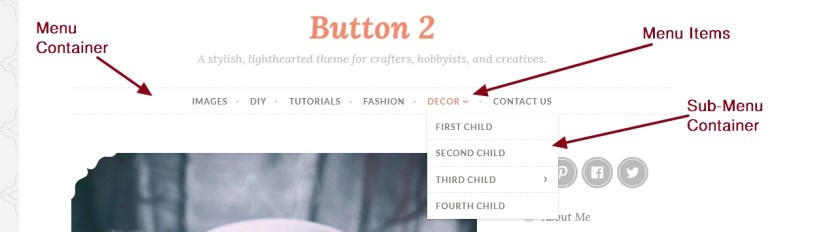
To Use a background color behind menu container
nav#site-navigation {
background: green !important;
}
To change menu items hover font color and visited color
@media only screen and (min-width: 40.063em){
.main-navigation a:hover, .main-navigation a:visited:hover {
color: darkred !important;
}}
To change menu items color, font size and font family
@media only screen and (min-width: 40.063em){
.main-navigation a {
color: white !important;
font-size: 14px !important;
font-family: cursive;
}
}
To change sub menu item container background color
@media only screen and (min-width: 40.063em){
.main-navigation ul ul {
background: green !important;
}}
To change font size, color and font family of Site title
.site-title a, .site-title a:visited {
color: darkred !important;
font-size: 33px;
font-family: cursive !important;
}
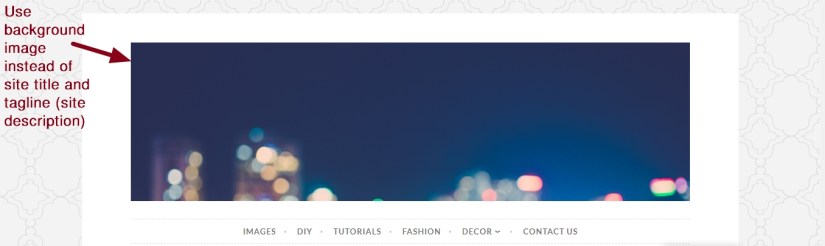
If you want to use a background image just behind the Header (instead of site title and Tagline / Site Description)
header#masthead {
background: url(https://defaultcustomheadersdata.files.wordpress.com/2016/07/blur.jpg);
background-size: 100% !important;
}
.site-branding {
visibility: hidden;
}
*** Blog / Archive / Tag / Search page modification***
To change category links font color, size and font family
span.cat-links a {
font-size: 15px;
color: darkred;
font-family: cursive !important;
}
To change font size, color and font family of post titile
.entry-title, .entry-title a {
font-size: 23px;
color: darkred;
font-family: cursive;
}
If you want to use a background color just behind post title and give it a different look like the screenshot
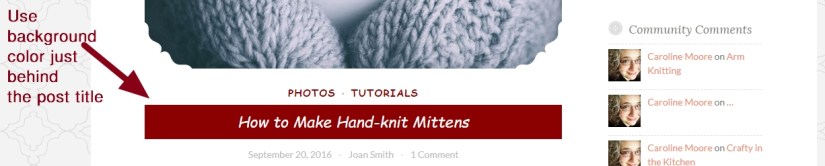
.entry-title {
background: darkred;
color: white;
padding-top: 12px;
padding-bottom: 12px;
}
.entry-title a {
color: white !important;
}
.entry-title:after{display:none;}
To change font size, color,font family and text alignment
.entry-content {
color: black !important;
font-size: 15px;
font-family: cursive;
text-align: justify;
}
To change Widget title font color, font size, font family and font style
.widget-title {
width: 100%;
font-size: 24px;
font-style: italic;
color: darkred;
font-family: cursive;
}
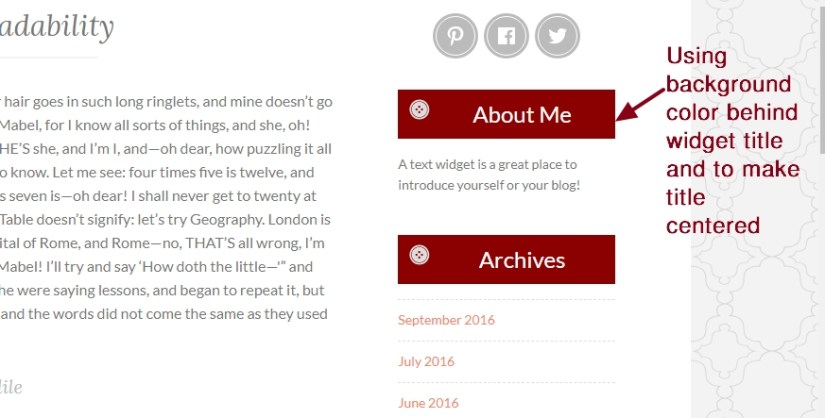
To use background color behind widget title and to make the widget title centered
h1.widget-title {
background: darkred;
padding: 12px;
color: white;
text-align: center;
font-style: normal;
}
To change widget links font size, color and font family
.widget a {
color: darkred !important;
font-size: 16px;
font-family: cursive;
}
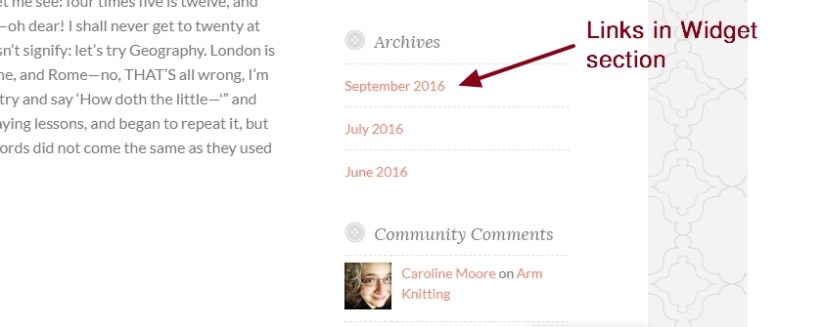
To change widget links hover color
.widget a:hover {
color: green !important;
}

To change headers like h1,h2,h3, h4, h5 and h6 font family, font weight, font style and color
h1, h2, h3, h4, h5, h6 {
font-family: cursive;
font-weight: 600;
font-style: italic;
color:black;
}
If you want to remove the text “Previous Post” and “Next Post” text (not the post titles)
.nav-links .meta-nav {
display: none !important;
}
If you want to change only the text “Previous Post” and “Next Post” font size, color and font family
.nav-links .meta-nav {
font-size: 12px !important;
color: darkred;
font-family: cursive;
}
If you want to change font size, color and font family of Previous and Next Post titles
.nav-links a {
color: blue;
font-size: 17px;
font-family: cursive;
font-style: normal;
}
If you want to change hover color of Previous and Next post titles
.nav-links a:hover {
color: green;
}
If you want to change Older Post button outline color, background color and border color
#primary #infinite-handle span button {
outline-color: darkred;
background: green !important;
border-color: yellow !important;
}
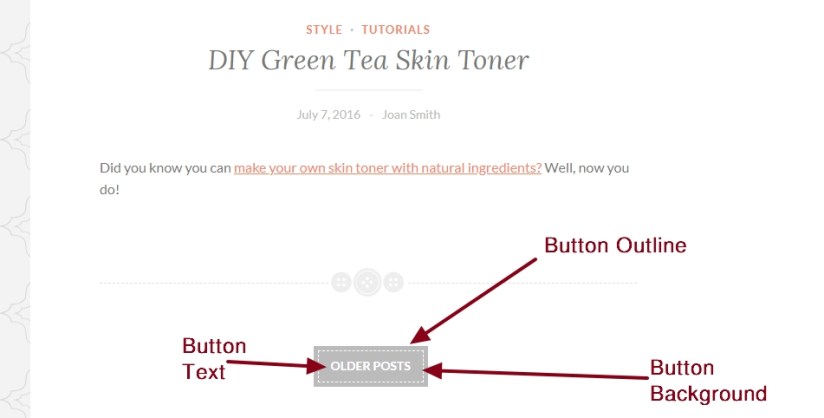
If you want to change Hover color of Older Post button
#primary #infinite-handle span button:hover {
background: darkred;
outline-color: darkred;
}
If you want to change font size (it will make the button bigger also) , color and font family of Older Post text
#primary #infinite-handle span button {
font-size: 16px !important;
color: blue;
font-family: cursive;
}
If you want to change footer copyright info or Proudly Powered By WordPress in Publication theme by Automattic
Go to your dashboard. Then Appearance > Editor > footer.php . Please check the screenshot for better understanding and use the code i shared below the screenshot to change copyright info
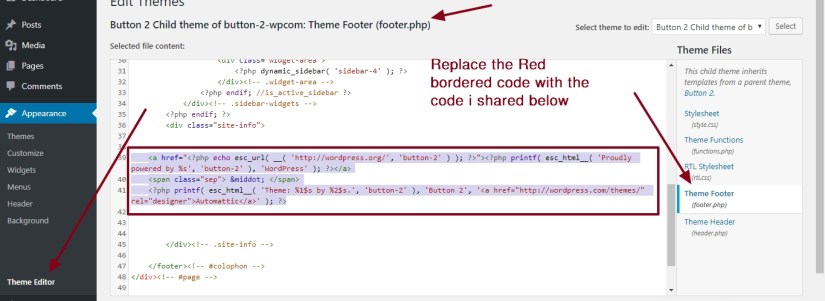
© Copyright 2018 or 2019
<span class="sep"> | </span>
Message about your company
If you have any issue feel free to ask me question here in comments section

 All About Basic

Hi! Will this child theme work with Divi? Thanks! I really like this theme.
LikeLike
Hi Brenda
i don’t think so
Regards
Om
LikeLike
this is a fantastic post! I’m thinking of switching from Olsen (since it’s retired) to Button 2. Any downsides of using Button 2? I want to have a theme that is highly customizable and flexible, but has a similar look to Olsen.
LikeLike
You can give a try :)
LikeLike
I switched it up but I’m not able to have a post in full width. Do you have any code for that? I tried with Elementor but the comments section disappear
LikeLike
Share me your post URL to check
Regards
Om
LikeLike
Hello, awesome Theme! How can I make all the buttons orange by default? They are currently gray.
LikeLike
Hi
thanks
please share me your site url to check
Regards
Om
LikeLike
Its mobilecrab.de – The grey button is located at the top of the mobile page (called menü). Also, I have another question: how can I change the font for the “Read more” and “Image descriptions” block?
LikeLike
Hi,
To change Menu color
button.menu-toggle {
background: orange;
outline-color: orange;
}
To change Read More font
a.more-link {
font-family: cursive !important;
}
but i am not seeing which one is Image description?
Regards
Om
LikeLike
You can see the text under the Pictures: https://mobilecrab.de/black-week-monatlich-kuendbare-allnet-vertraege-10-gb-fuer-999e-20-gb-fuer-1499e-und-30-gb-fuer-1999e-dauerhaft-im-vodafone-netz-bei-dr-sim/
LikeLike
Hi TeD
would you mind to tell what change you want to do please?
Regards
Om
LikeLike
I would like a different font under the image descriptions and for the “read more” button/text.
LikeLike
Hi TeD
to change font for image description you need to use this
figcaption.wp-element-caption {
font-family: cursive !important;
}
just you need to change the font name with your one… and may need to install that font
Regards
Om
LikeLiked by 1 person
How to change font color? Colors are too pale. I want black instead of grey and dark orange instead of pale orange. Thanks
LikeLike
Hi Matteo
share me your site url to check please
Regards
Om
LikeLike
This is the website: https://www.ilredpillatore.org/
LikeLike
Hi Matteo, for your site title “Il Redpillatore” ( which is pale orange ), try this code.
h1.site-title, h1.site-title a {
color: #FF4500 !IMPORTANT;
}
For your site description “Approfondimenti su dinamiche sociali”
.site-description {
color: black !IMPORTANT;
}
for the metas, like (Settembre 29, 2023Il Redpillatore835 Comments)
try this code
.entry-meta * {
color: black !important;
}
.entry-meta *:hover {
color: #FF4500 !IMPORTANT;
}
let me know if those helps
Regards
Om
LikeLike
Very helpful, thank you so much!
LikeLike
Some other questions to supplement the article:
-How can I display articles as previews like on this blog? I’d like to have the images visible at the beginning of the article. Essentially, presenting articles as on your blog (I assume it’s also the Button theme).
-How do I reduce the top margin of the blog? (the blue part)
-How do I translate various buttons in English like ‘Continue reading’ or ‘comments’ into my language?
Thanks in advance
LikeLike
Hi Matteo
Regarding your 1st Question
** in my blog post ( which u see in homepage), i put an image to the top and then put a “Read More” / “More” from the editor ( where i want how much text to show in the homepage)
Regarding Question 2
please try this code ( it will reduce the utmost top blue part to be 0)
@media only screen and (min-width: 75em){
.site {
margin-top: 0px !important;
}}
Regarding Translate
** u can do it in various ways, you can create a child theme and check to modify the theme file in component>content.php
( u need to copy the folder with that file in child theme)
let me know if that helps
Regards
Om
LikeLike
The code for the borders is working, thank you. The ‘more’ button isn’t enough; I think it’s something more complicated. I should mention that I recently reinstalled WordPress due to malware, and in the process, I lost all the featured images. I’m not sure if there’s a code that automatically grabs the first image from a post and sets it as the featured image.
Regarding the translation, I’m not sure how to create a child theme, but I’ll study how to do it now. Then I should upload this child theme, correct? Thanks again
LikeLike
Hi Matteo
you restored your site from backup? and you were using button theme before malware infection?
Regarding child theme
** yes, what u said is correct…
and first image can also be used in homepage, though it needs to modify the theme file… and if possible share me your backup
let me know i will share u my mail to share
Regards
Om
LikeLike
No I had another theme, but now I prefer this one because it has a simple graphic. What backup should I send to you? I send it by mail, ok.
LikeLike
ok
so in this current button theme u want to show the first image to the homepage?
have u checked using Featured image?
Regards
Om
LikeLike
If I use the feature image, it appears as a preview on the homepage. However, currently, all articles don’t have a feature image because they were lost during the transition, and since there are hundreds of articles, it’s complex to reload all the images. Additionally, decorative framed images appear at the corners, whereas I would like normal rectangular images. I was hoping there might be a simple code to take the first image of each article and use it as a preview.
LikeLike
Greetings! Thank you so much for this super helpful post! For some reason, Button 2 only displays my images left aligned. Is there a way to use CSS so the images can all be centered? Many thanks for your help!
LikeLike
Hi
thanks
would you mind to share me your site url / page url where u want to center the images please?
Regards
Om
LikeLike
Hi Om, it seems like that was just a bug on one page and I found a workaround. But I do have another question: When I add footers on this theme, they don’t appear side by side, they just stack one above the other. Is there something I need to do to get them to appear side by side? My website is http://www.sezin.org. Many thanks in advance!
LikeLike
Thanks
just checked your site, i am not seeing any footer ( which are one below another)?
Regards
Om
LikeLike
Hi Om, I removed the footers because I don’t want them stacked, I would like them side-to-side like the documentation for the theme shows them to be. Should I put them in anyway so you can see? Thanks so much!
LikeLike
yes please
put those
i will check
Regards
Om
LikeLike
Hi Om,
I finally had a chance to add in the footers. Could you take a look at my website now and let me know if you have any ideas why they aren’t showing up side-by-side? Thank you so much in advance! I really appreciate your help, this has been driving me bananas.
http://Www.sezin.org
LikeLike
Hi Zuzu
please try this
@media only screen and (min-width: 760px) {
.footer-widgets aside {
width: 33%;
float: left;
padding-left: 10px;
padding-right: 10px;
text-align: justify;
}}
let me know if it helps
Regards
Om
LikeLike
Thank you so much! where do i put this code? in custom css?
LikeLike
Hi Zuzu
yes
either in Appearance > Customize > Additional CSS
or you can use Simple Custom CSS & JS plugins
https://wordpress.org/plugins/custom-css-js/
LikeLike