Disclaimer: This technique is specially for wordpress.com sites
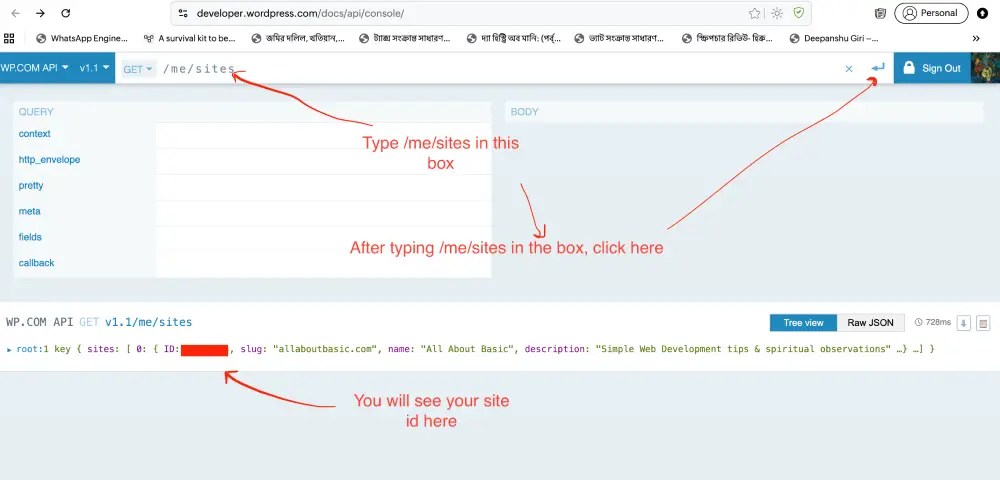
If you’re planning to build a Headless WordPress site using React or Next.js, one of the first things you’ll need is your WordPress.com Site ID. This Site ID allows you to connect your WordPress.com content with modern frontend frameworks through the WordPress.com REST API.
In this step-by-step guide, I’ll show you exactly how to find your Site ID and use it in your API calls to fetch posts and display them dynamically on your React or Next.js website.
Step 1: Go to the WordPress.com API Console
Visit the official WordPress.com REST API Console at:
https://developer.wordpress.com/docs/api/console/
This is an interactive tool provided by WordPress where you can test API endpoints and view results directly in your browser.
Step 2: Type /me/sites in the Search Box
Once the API console is open:
- Select GET from the dropdown menu.
- In the input box next to it, type
/me/sitesexactly as shown in the screenshot below.
This endpoint retrieves a list of all the sites linked to your WordPress.com account.
Step 3: Click the Blue “Run” Button
After typing /me/sites, click the blue arrow button on the right-hand side (as shown in the image).
This will send a request to WordPress.com’s API to fetch your site details.
Now you will see the Site ID as per the screenshot
Step 4: Use the Site ID in Your API Endpoint
Now that you have your Site ID, you can start fetching your posts using the WordPress.com REST API.
Use the following endpoint format:
https://public-api.wordpress.com/wp/v2/sites/YOUR_SITE_ID/posts
For example:
https://public-api.wordpress.com/wp/v2/sites/123456789/posts
You can use this URL in your React or Next.js app to dynamically load your WordPress posts and display them in your custom front-end.
Step 5: Example Fetch Request in React or Next.js
Here’s a simple example using the fetch() method in JavaScript:
async function getPosts() {
  const res = await fetch('https://public-api.wordpress.com/wp/v2/sites/123456789/posts');
  const posts = await res.json();
  console.log(posts);
}
getPosts();
This code fetches all your blog posts from WordPress.com and prints them to the browser console.
You can then use React components to display the titles, images, and content as needed.
Step 6: Learn More About WordPress.com REST API
For detailed documentation and additional API options, check the official WordPress.com API guide here:
👉 https://developer.wordpress.com/docs/api/getting-started/

 All About Basic