The WordPress 2025 default theme (Twenty Twenty-Five) is fully block-based and powered entirely by the Gutenberg Site Editor. Unlike classic themes, you can now customize every part of your website—including the footer—using block patterns, template parts, and visual editing tools.
If you’re new to WordPress block themes, editing the footer may feel confusing at first. In this guide, I’ll walk you through the exact steps (with screenshots) to locate, edit, replace, or recreate the footer using the full site editor.
Step 1: Open the Site Editor
From your WordPress dashboard:
- Go to Appearance → Editor
- This will open the Full Site Editing (FSE) interface.
Your screen should look like the design panel shown in your screenshots.

Step 2: Navigate to Patterns
Once you’re inside the Site Editor:
- Select Patterns
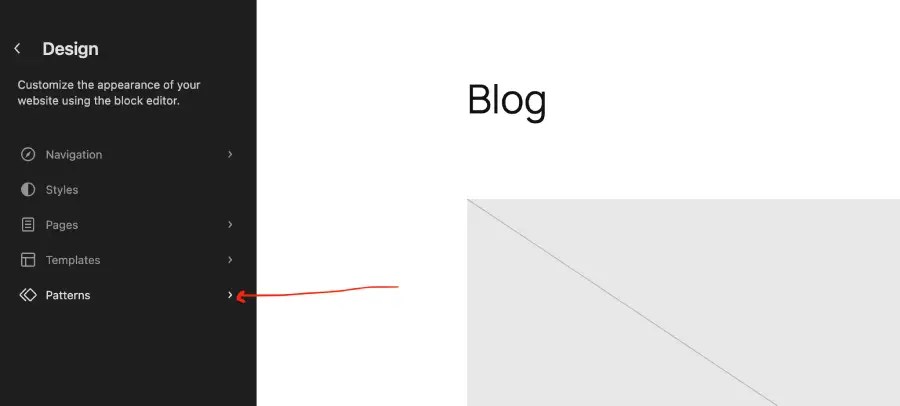
Step 3: Navigate to Footer Pattern Part
Once you’re inside the Pattern:
- Select Footer

Step 4: Edit the Footer
- In the right side Footer Patterns will be showing
- Edit that Footer pattern as per the screenshot below

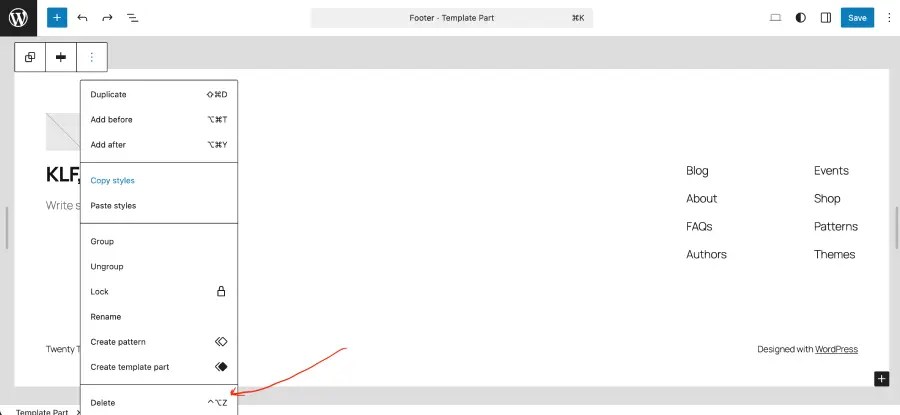
Step 5: Select the whole footer block to delete
As per the screenshot click and select the whole footer block

Click the three-dot menu (⋮) in the toolbar and select Delete
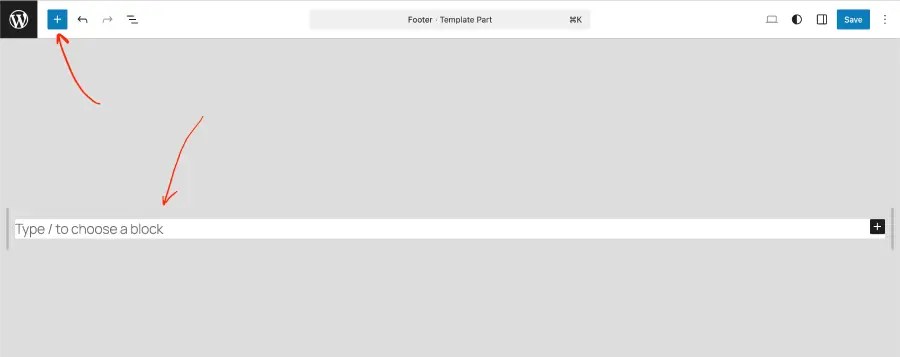
It will be looked like this and then click on the + symbol at the top
Step 6: Select new pattern for footer
As per the screenshot below, click on the pattern and it will show the pattern available to use
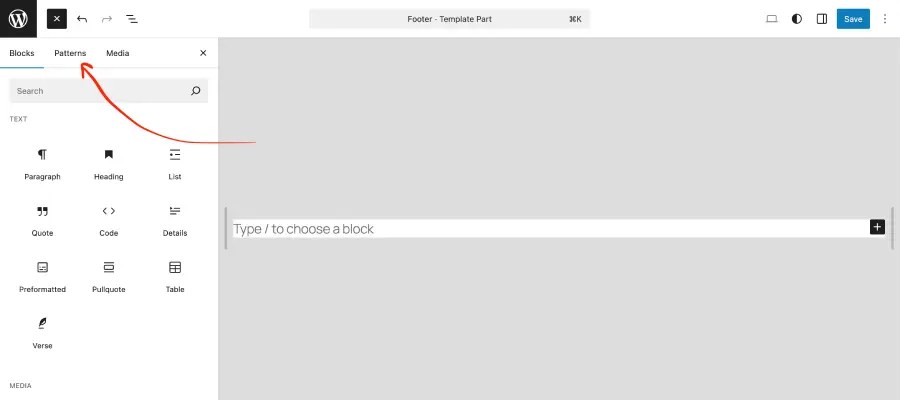
Select Footers from the left and from the right side select your favorable footer style ( i have chosen the black one)
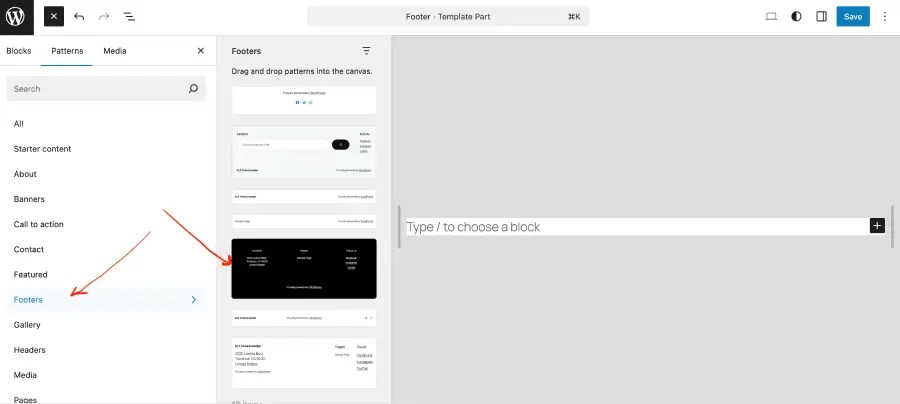
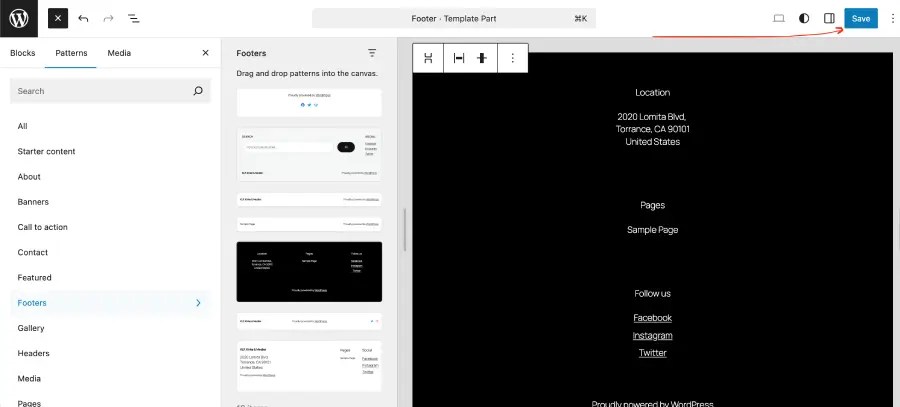
Great and you are done. Now save the new footer using the right side Save button.

 All About Basic