Java Basic Problems

Java: How to Read a text file and search any specific word from that

In my last post I have given an idea about  How to change font of JLabel.

Here, I have shared   Reading a text file and search any specific word from that.

Sometimes we may need to search any specific word from a text file. For this, we need to know how to read a text file using java.

Here I have given a simple way, just read a text file and find out the search keyword, after finding out the search key word it will be shown on which line the searched keyword was found.

 ** It will give you just a basic idea.

Click Here to download the Code+Reader1.txt  to test yourself.

Code Example:

import java.io.*;

import java.util.*;

class filereader

{

public static void main(String args[]) throws Exception

   {

   int tokencount;

   FileReader fr=new FileReader(“reader1.txt”);

   BufferedReader br=new BufferedReader(fr);

   String s;

   int linecount=0;

   String line;

   String words[]=new String[500];

                                while ((s=br.readLine())!=null)

                                        {

                                        linecount++;

                                        int indexfound=s.indexOf(“see”);

                                                                     if (indexfound>-1)

                                                                     {

 System.out.println(“\n”);

 System.out.println(“Word was found at position::” +indexfound+ “::on line”+linecount);

System.out.println(“\n”);

 line=s;

System.out.println(line);

int idx=0;

StringTokenizer st= new StringTokenizer(line);

tokencount= st.countTokens();

System.out.println(“\n”);

System.out.println(“Number of tokens found” +tokencount); System.out.println(“\n”);                                             

 for (idx=0;idx<tokencount;idx++)                                                                                                    {

 words[idx]=st.nextToken();

System.out.println(words[idx]);

                                                           }

                                                            }

                                        }

   fr.close();

   }

}

OUTPUT:

file reader java

Java Basic Problems

Java: How to change font of JLabel?

In my last post I have discussed about JTextField Validation process.

Today I want to share my idea about how to change the font of JLabel in java.

Sometime in java programming we may need to change the font of   JLabel. Actually, it depends on the developer and may be for  the outlookings of the software.

So, whatever the reason is, there is a way to change the font  of JLabel in java.

In the given example, I have just tried to give an idea about  how to declare JLabel in java and also how to change the font and  font appearance of the following JLabel.

*** Important Note: Whatever the font you want to apply in your JLabel, it must be installed on  that computer.

Code Example:

import javax.swing.*;

import java.awt.*;

class labelFont extends JFrame

{

JLabel  label1=new JLabel(“Hi,My name is Prakash”,JLabel.CENTER);

JLabel  label2=new JLabel(“I am a Student”,JLabel.CENTER);

JLabel  label3=new JLabel(“I like Programming and I am a beginner”);

labelFont()

{

          label1.setBounds(95,00,140,40);

          label2.setBounds(95,15,140,40);

          label3.setBounds(15,200,270,40);

          Font displayFont=new Font(“Times New Roman”,Font.PLAIN,12);

    label1.setFont(displayFont);

          Font displayFont1=new Font(“Calibri (Body)”,Font.PLAIN,12);

    label2.setFont(displayFont1);

                  setSize(300,300);

                             setTitle(“JLabel Font Change”);

                             setDefaultCloseOperation(EXIT_ON_CLOSE);

           JPanel panel=new JPanel();

            getContentPane().add(panel);

                             panel.setLayout(null);

                             panel.add(label1);

            panel.add(label2);

            panel.add(label3);

}

public static void main(String args[])

{

labelFont myFont=new labelFont();

myFont.setVisible(true);

}

}

OUTPUT:

JLabel font change java

Java Basic Problems

Java: I don’t want to allow Plus (+) or Minus (-) sign as a first entry of my JTextField.

In my previous example I have shown about How to add TextField (JTextField)in java.

Here I will try to show how to add validation in JTextField.

Suppose,I am trying to prepare a Calculator and I don’t want my user to give invalid input at the  first keypress entry,  for example, Plus (+) or Minus (-).

But, they can give any numeric entry at the first keyPress.So, I  need to put validation in my JTextField so that Plus (+) or Minus () sign will not be allowed at the first keypress /key entry, but  they are allowed after any numeric or digit entry.

In the given example, if users press (+) or () sign at first, our program will show error message but it will allow users to take numeric entry at first. After first entry, (+) or minus (-) will be allowed.


Code Example:

import java.awt.*;

import java.awt.event.*;

import java.awt.event.KeyEvent;

import javax.swing.*;

import java.util.*;

public class Calc extends JFrame

{

   JTextField ques, answer;

   private Toolkit toolkit;

   char ch;

   int plusOccurs=0;

        public Calc()

                   {                

       JPanel panel =new JPanel();

       getContentPane().add(panel);

       panel.setLayout(null);

          setSize(300,200);

          setTitle(“Easy Calculator”);

              setDefaultCloseOperation(EXIT_ON_CLOSE);

               toolkit=getToolkit();

                    Dimension size=toolkit.getScreenSize();

                    setLocation(size.width/2-getWidth()/2, size.height/2-getHeight()/2);

                    ques=new JTextField();

                    answer=new JTextField();

        JButton calculate=new JButton(“Calculate”);

        calculate.setBounds(75,50,90,30);

                   ques.setBounds(10,10,220,30);     // Positioning of TextField(JTextField)

          answer.setBounds(10,100,220,30); //Positioning  of TextField(JTextField)

          panel.add(calculate);

          panel.add(ques );    // Adding TextField(JTextField) in JPanel

          panel.add(answer );  // Adding TextField(JTextField) in JPanel

                    ques.addKeyListener(new KeyAdapter()

                    {

                    public void keyTyped(KeyEvent e)

                    {

                      ch=e.getKeyChar();

               if (ch==’+’ && ques.getText().length()==0)

                 {

   System.out.println(“\n”);

   System.out.println(“Sorry, You have entered :”+ch+”:at first,Please Enter Numeric value, then try”);

                      ques.setEditable(false);

                      ques.setBackground(Color.WHITE);

                      }

                    else if (ch==’-‘&& ques.getText().length()==0)

                 {

                      System.out.println(“\n”);

                                         System.out.println(“Sorry, You have entered :”+ch+”:at first,Please Enter Numeric value at first”);

                      ques.setEditable(false);

                      ques.setBackground(Color.WHITE);

                      }

                      else

                      {

                      ques.setEditable(true);

                      ques.setBackground(Color.WHITE);

                      }

                    }

                    });

                    }

Java Basic Problems

Java: How to use Message Dialog Box and Message Input Box

Sometimes we may need in java programming to use input box to take input from the users in the same way we may also need to show some result or data in the pop up message dialog box.

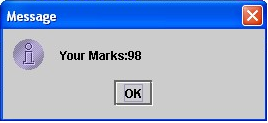
Here I have given a little example of how to show or use Message Dialog Box and Message Input Box in java.

Here in the example Message Input Box will take input from the user and show the result in Message Dialog box.

Here is the code example:

import javax.swing.*;

class jPaneTest 

{

public void jOptionPaneTest()

                   {

          String reason=JOptionPane.showInputDialog(“Please Enter Number:”);

          JOptionPane.showMessageDialog(null,”Your Marks:”+reason);

                   }

public static void main(String args[])

{

jPaneTest newTest=new jPaneTest();

newTest.jOptionPaneTest();

}

}

Java Basic Problems

Java: How to add TextField (JTextField)in java?

Suppose you are trying to prepare a Calculator using java programming language and also you are trying to prepare your calculator using JTextField (javax.swing.JTextField).

Here I have given a little example how to use TextField (JTextField) of java in JFrame.

Using the following code you will be able to learn how to put or use or show :) TextField (JTextField) in java  and how to position the TextField in JFrame.


 Here is the Code Example:

import javax.swing.*;

import java.awt.Dimension;

import java.awt.Toolkit;

public class Calc extends JFrame

{

   JTextField ques, answer;

   private Toolkit toolkit;

        public Calc()

                        {                     

                        JPanel panel =new JPanel();

        getContentPane().add(panel);

                        panel.setLayout(null);

                        // UIManager.LookAndFeelInfo laf[]=UIManager.getInstalledLookAndFeels();

                setSize(300,200);

                setTitle(“Easy Calculator”);

                setDefaultCloseOperation(EXIT_ON_CLOSE);

                 toolkit=getToolkit();

                Dimension size=toolkit.getScreenSize();

                 setLocation(size.width/2-getWidth()/2, size.height/2-getHeight()/2);

                 ques=new JTextField();

                 answer=new JTextField();

        JButton calculate=new JButton(“Calculate”);

        calculate.setBounds(75,50,90,30);

        ques.setBounds(10,10,220,30);     // Positioning of TextField(JTextField)

        answer.setBounds(10,100,220,30); //Positioning  of TextField(JTextField)

        panel.add(calculate);

        panel.add(ques );    // Adding TextField(JTextField) in JPanel

        panel.add(answer );  // Adding TextField(JTextField) in JPanel

                                       }

          public static void main(String args[])

              {

              Calc  cal=new Calc();

              cal.setVisible(true);

              }

}

Java Basic Problems

Java: Add value to a vector which is inside another vector.

Sometimes what we do in java programming, we add value to a vector and then adds that vector to another vector (Vector inside another vector).

For example

(“X”,”Y”,”Z”) is in Vector    name

name.add(“X”);

name.add(“Y”);

name.add(“Z”);

(“M”, “N”,”O”) is in Vector name1

name1.add(“M”);

name1.add(“N”);

name1.add(“O”);

Add  this  name and  name1 vector in nameContainer Vector

nameContainer.add(name);

nameContainer.add(name1);

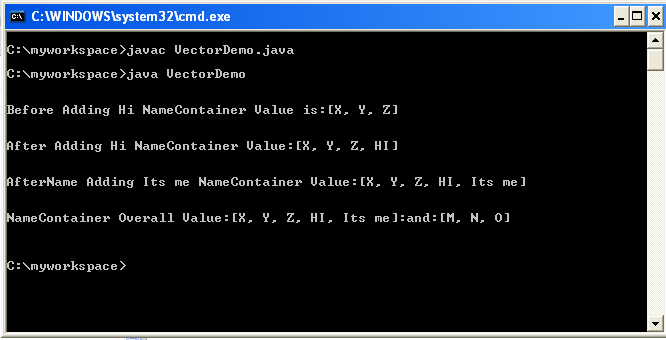
So, if you want to add another value  or    modify  the vector  name and name1  which are inside nameContainer Vector,  do the following  according to the given code.

Code Example

 import java.util.Vector;

public class VectorDemo

{

 VectorDemo()

{

Vector name=new Vector();

Vector name1=new Vector();

Vector name2=new Vector();

name2.add(“Its me”);

Vector nameContainer=new Vector();

name.add(“X”);

name.add(“Y”);

name.add(“Z”);

nameContainer.add(name);

name1.add(“M”);

name1.add(“N”);

name1.add(“O”);

nameContainer.add(name1);

System.out.println(“Before NameContainer Value:”+nameContainer.get(0));

((Vector)nameContainer.get(0)).add(“HI”);

System.out.println(“name get 0 and 1:”+name.get(0)+” “+name.get(1));

System.out.println(“AfterNameContainer Value:”+nameContainer.get(0));

((Vector)nameContainer.get(0)).add(name2.get(0));

System.out.println(“AfterNameContainer Value:”+nameContainer.get(0).toString());

}

public static void main(String args[])

{

VectorDemo x=new VectorDemo();

}

}

OUTPUT:

Java Basic Problems

JPanel Layout: How to add CheckBox Vertically or Horizontally in JPanel using BoxLayout

We can use BoxLayout in Java to add or show CheckBox Vertically or Horizontally in JPanel.

According to our need in software we have to code in such a way that  CheckBox should appear in JPanel  in Horizontal or Vertical  position.

For  Vertical Position of CheckBox in JPanel : javax.swing.BoxLayout.Y_AXIS       is used

For  Horizontal Position of CheckBox in JPanel : javax.swing.BoxLayout.X_AXIS   is used


Sample  Java code example:


        private javax.swing.JScrollPane jsp_jobWorkProcess = null;

        JCheckBox chk_Embrodary=new JCheckBox(“Embrodary”);

        JCheckBox chk_Cutting=new JCheckBox(“Cutting”);

        JCheckBox cb_Sewing=new JCheckBox(“Sewing”);

        JButton jb_next= new JButton();

        private javax.swing.JScrollPane getSst_jobWorkProcess()

            {

 if(jsp_jobWorkProcess == null) {

 jsp_jobWorkProcess = new javax.swing.JScrollPane();      

JPanel panel=new JPanel();

panel.setLayout(new javax.swing.BoxLayout(panel, javax.swing.BoxLayout.Y_AXIS));

JLabel lblHeader=new JLabel(“Job Work Process Selection”);

                                    panel.add(lblHeader);

                                    panel.add(chk_Embrodary);

                                    panel.add(chk_Cutting);

                                    panel.add(cb_Sewing);

                                    panel.add(getJb_Next());

                                    jsp_jobWorkProcess.setBounds(37, 248, 179, 120);

                                    jsp_jobWorkProcess.setViewportView(panel);

                        }

                        return jsp_jobWorkProcess;

            }
.adcode{display:block;}

Java Basic Problems

Java: How to Know in which line Java Exception Occurred?

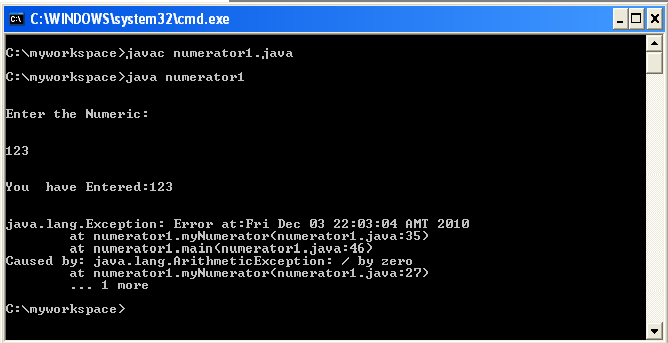
There is  a very simple way to know where and which line exception occurs in your java code, and it is  very useful tool for diagnosing an Exception.printStackTrace()  is that simple tool which will help you to diagnose your code in an easy way

It  will tell you what happened  and  where (in which line )  in the code this exception  happened

 printStackTrace()  is  a method of the Throwable class. All Exceptions are a subclass of that class.

It’s a great debugging tool.

Here is the code example with output to show the function of  printStackTrace()

import java.io.*;

class numerator1

{

static String input;

static int intInput;

                        public void myNumerator()

                        {

                                                            try

                                                            {

            BufferedReader br=new BufferedReader(new InputStreamReader(System.in));

            System.out.println(“\n”);

                                                            System.out.println(“Enter the Numeric:”);

                                                            System.out.println(“\n”);

                                                            input=br.readLine();

                                                            intInput=Integer.parseInt(input);

                                                            System.out.println(“\n”);

                                                            System.out.println(“You  have Entered:”+intInput);

                                                            System.out.println(“\n”);

                                                            intInput=intInput/0;

      //It will cause an error as I have divided the input number by zero(0)

      //java.lang.ArithmeticException: / by zero  (Check the Output)        

                                                            System.out.println(“\n”);

                                                            }

                                                            catch(Exception e)

                                                            {

                                                            //System.out.println(“Error:”+e.getMessage());

                                    Exception newEx = new Exception(“Error at:”+new java.util.Date()+””,e);

                                    newEx.printStackTrace();

                                                            }

                        }

public static void main(String args[])

{

numerator1 x=new numerator1();

x.myNumerator();

}

}OUTPUT:

Java Basic Problems

Java: Comparison between Vector value and String Value

If you want to compare the String value stored  in a Vector with another  String value then its for you. I have given here a better Comparison solution to compare the value in

 a Vector with another String.
Here is the code example:
import java.util.Vector;
public class MainClass {

 public MainClass() {

 Vector vec=new Vector();

 vec.add(“Jhony”);

 String name=”Jhony”;

 /*********************Better Way***************************/

  if(vec.get(0).toString().trim().equalsIgnoreCase(name))

  {

   System.out.println(“First Try Name Match”); 

  }

  else

  {

   System.out.println(“First Try Name Not Matched”); 

  }

   /*********************End of: Better Way***************************/

 /*********************Not so Better Way***************************/

  if(vec.get(0).toString()==name)

  {

  System.out.println(“Second Try Name Match”);

  }

  else

  {

  System.out.println(“Second Try Name Not Matched”);

  }

  /****************End of : Not so Better Way**********************/

  }

public static void main(String[] args) {

MainClass x=new MainClass();

  }

}


Java Basic Problems

Java: Checkbox value to Vector

If CheckBox is selected  True will be added in the Vector    if CheckBox is not selected  False will be added.

Sometimes we may need in java programming to do such code where  if any CheckBox is selected than  True should need to be added in the Vector  in the same way, if  CheckBox is not selected then False will be added in Vector.

Here is the code snippet by which you can solve the problem described  above.

Vector data=new Vector();

 data.add((chkbox_buyer_name.isSelected()?”true”:”false”)+””);

 data.add((chkbox_item_number.isSelected()?”true”:”false”)+””);

 data.add((cb_order_number.isSelected()?”true”:”false”)+””);

 data.add((chkbox_style_number.isSelected()?”true”:”false”)+””);

 data.add((chkbox_style_description.isSelected()?”true”:”false”)+””);