1. How to install Avada theme Demo in my hosting?
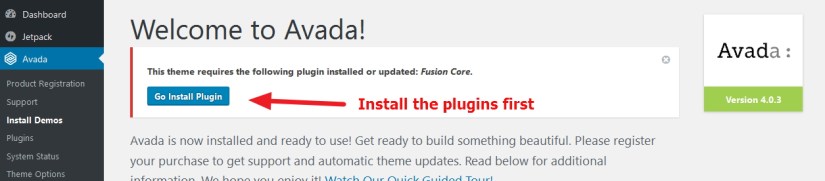
Answer: After installing wordpress and Avada theme go to your Dashboard > Avada > Install Demo and you will get the various demos of your choice..just click on install button and it will be installed in your Avada theme … please check the screenshot

Important Note:
Please Install the plugins first from this option
IF you face any sort of memory issue while installing Avada demo then you may need to check them memory or system status of your hosting (please check the error notification of the error)

To Solve the Memory Limit issue in your hosting put these 2 (two) block of codes in your wordpress installation wp-config.php file
define( ‘WP_MAX_MEMORY_LIMIT’, ‘256M’ );
define( ‘WP_MEMORY_LIMIT’, ‘256M’ );
I am using Avada Modern Shop Demo for modifications
2. How to change Avada theme’s Drop down Menu background color and hover background color?
Ans: To change this, go to Avada > Theme Option > Menu and there you will get the option to change this. Please check the image attached
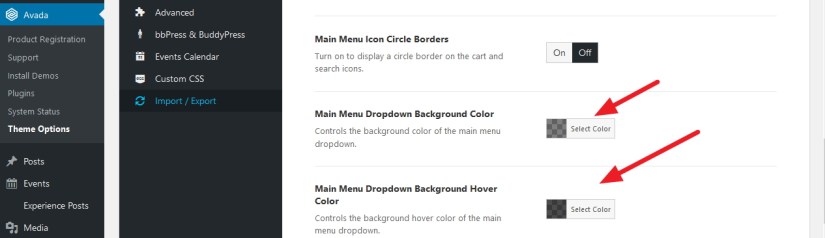
Also, from that section in Avada theme you can change menu font family, font color, menu hover color and more of your choice.
3. How to create a blank page (without header, footer, sidebar,title etc) in Avada theme?
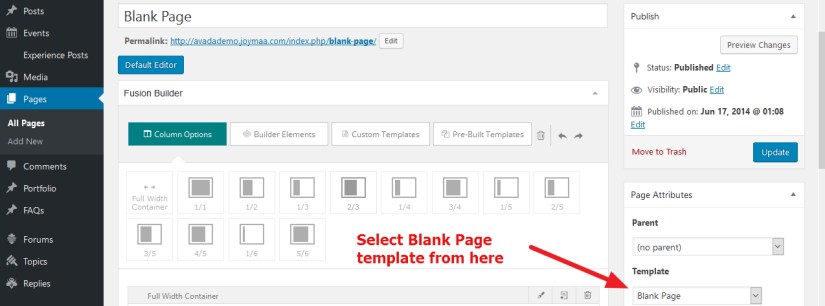
Answer: Just create a page and select Blank Page template from Page Attribute section. Check the image attached
4. How to change various header Titles like H1, H2, h3, h4 font color, font family and font size in Avada theme?
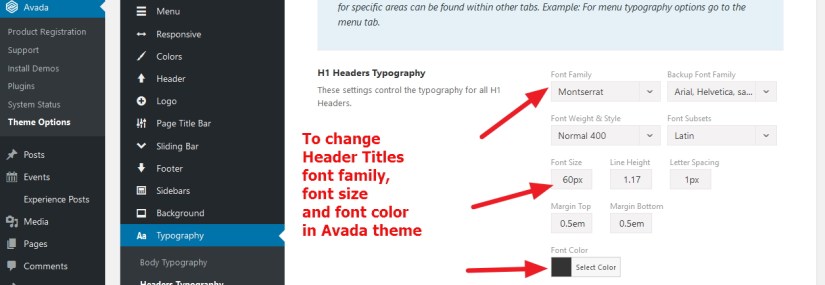
Ans: To change this, go to Avada > Theme Option > Typography > Header Typography and there you will get the option to change this. Please check the image attached
This change is applicable for Widget title too.
5. How to change Footer or sidebar widget title’s font color, font family and font size in Avada theme?
Answer: Put this code in Avada > Theme Option > Custom Css portion
.widget-title {
font-family: times new roman !important;
color: red !important;
font-size: 23px !important;
}
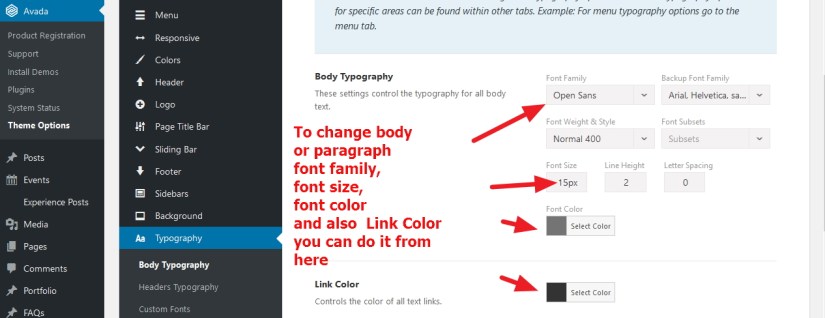
6. How to change body contents font color, font family and font size in Avada theme?
Ans: To do this, go to Avada > Theme Option > Typography > Body Typography and there you will get the option to change this. Please check the image attached
7. How to use or install custom or font of own choice in Avada theme?
Ans: To use custom font or your favorable fonts in Avada theme go to Avada > Theme Option > Typography > Custom Fonts and there you will get the option to change this. Please check the image attached (thats uploaded fonts will be uploaded in the drop down of fonts mentioned in step 4 and 6)

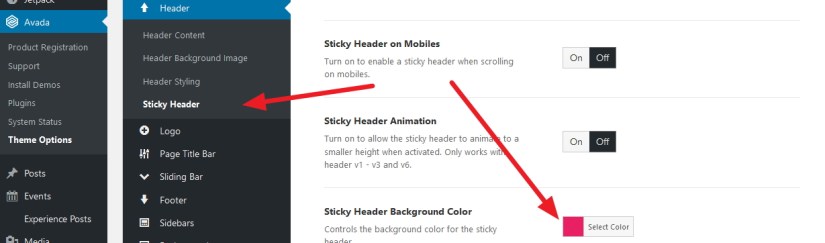
8. How to change Avada Sticky Header background color?

Answer: To change sticky header (floating log and menu) in avada theme go to
Avada > Theme Option > Header > Sticky Header and then check the following screenshot
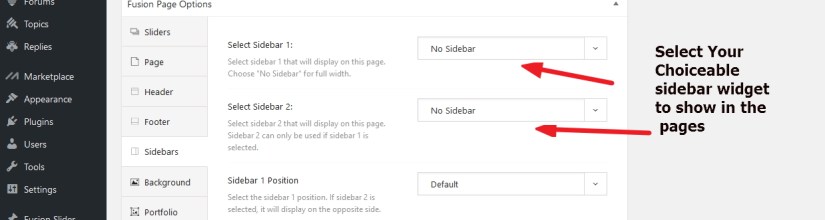
9. How to show different sidebar in different page in Avada theme?
Answer: Go to page editor and you can select different sidebar to show in that page from the following option (screenshot attached)
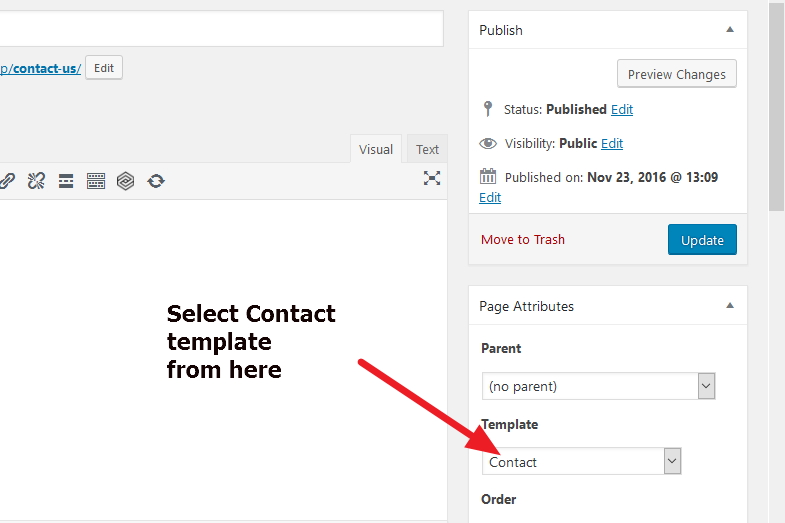
10. How to use Contact Form to create Contact Us page in Avada theme?
Answer: Avada theme has Contact template to show a Contact form in particular page . To create Contact Us page first create the page and from the page editor select “Contact” template under page attribute (see attached screenshot)
Also, to configure the email and google map in Contact page you have to check
Avada > Theme Option > Contact Form ( please check the screenshot)

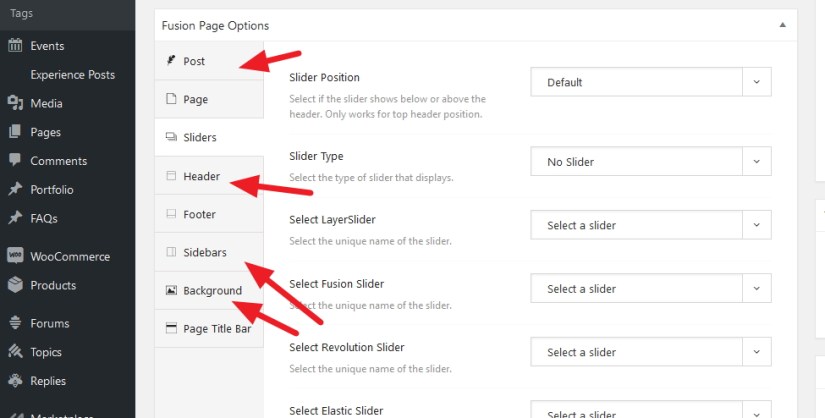
11. How to configure a post or page to show different sidebar, background, slider, Full width post or page, using padding and more
Answer: Go to page editor or post editor or edit a post or page then scroll to the bottom of the editor and check the screenshot to edit or configure the post/page as your wish

 All About Basic